Every song, beside Suno
Your HookGenius library opens on Suno’s Create page. Search it, pick a song, press Fill.
HookGenius for Suno puts your songs right on Suno’s Create page. Press Fill and the title, style, exclude list and lyrics go in, every line break kept. More Options is set for you on every page.
Everything above, done the moment you press Fill. Then you press Create.
Your HookGenius library opens on Suno’s Create page. Search it, pick a song, press Fill.
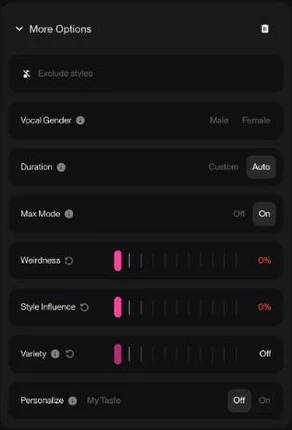
Suno resets these on every new page. The extension sets them back: Max Mode on, the sliders at zero, Personalize off, so Suno works from what you wrote.
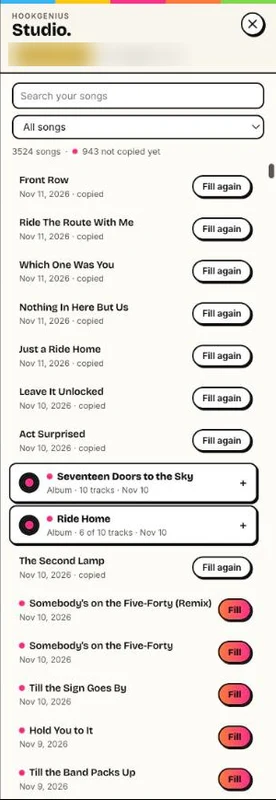
A pink dot marks every song you haven’t taken to Suno yet. Fill one and it’s marked copied in your HookGenius library too, so the Studio shows it.
From the Chrome Web Store.
Visit hookgenius.app signed in, and the extension picks up your account. No password to type.
On suno.com/create, open the HookGenius panel and press Fill on a song. Then press Create.
No. It puts in exactly what HookGenius wrote: the title, the style, the exclude list and the lyrics with every line break and section tag. Suno’s Create button stays yours.
No. It fills Suno’s Create form and sets More Options. Pressing Create stays yours.
On each Create page: Max Mode on; Weirdness, Style Influence and Variety at zero; Personalize off.
Your HookGenius sign-in, your email and your account id, stored in Chrome on your device so it can load your songs. Details in the privacy policy, section 9c.
No. Chrome extensions run on a computer. On a phone, use Copy for Suno in HookGenius.
No. HookGenius is independent and not affiliated with Suno, Inc.
Write it in HookGenius, fill it with one click, press Create.
Add to ChromeNo songs yet? Write your first one.